
Desk Converter Weight Capacity Explained
Last updated: November 14, 2026
A desk converter weight capacity is the total load the surface and moving parts can carry, and you need to count the whole setup, not just the laptop or one screen. Quick answer: many common desk converter setups fall in the 20 to 40 lb range, but the right number is the one printed on your model’s label. The steps below show how to read the limit, total your gear, and avoid a wobbly setup.
Key Takeaways
- Weight capacity is a load limit for the whole converter setup, not a guess.
- Your monitor, laptop, keyboard, mouse, and any arm or stand all add weight.
- A higher number on the box does not guarantee stability if the base is narrow or the lift feels loose.
- A safer setup usually leaves margin rather than sitting right at the edge of the rating.
- For more desk-converter basics, start with the hub on deskconverterguide.com and then come back to this page for the capacity math.
What desk converter weight capacity actually means

Desk converter weight capacity is the most weight a desk converter is meant to hold while staying usable. That includes the upper platform, any keyboard tray, and the moving lift parts—so the label is about the whole system, not one single shelf.
Picture this: you’ve got a 27-inch monitor, a laptop, a full-size keyboard, and a mouse on a standing desk converter. The number on the spec sheet looks fine until the tray sags, the lift sticks, or the unit starts rocking when you type. Weight capacity is a safety limit and a stability clue, not just a marketing line.
A lot of readers stop at the headline number and miss the part that matters most: the limit is only useful if you know what part of the converter it refers to. Some models list one total capacity for the whole platform. Others split the number between the monitor deck and the keyboard tray. A few add a separate limit for the monitor arm or upper shelf. Those are not interchangeable.
Two standards matter in practice:
- Total capacity: the full load the converter can carry.
- Per-surface capacity: the load limit for one shelf or tray.
If the label says 35 lb total, that does not mean 35 lb on the top and 35 lb on the tray. That mistake bends parts fast. It also makes the unit feel unstable even before anything fails.
How do I read the number on the label?
The number on the label tells you the load limit, but the fine print tells you what part of the desk converter it applies to. Read the spec as a system, not as a single big number.
Picture this: you’re comparing two converters and one says “holds up to 50 lb” while another says “monitor platform 20 lb, keyboard tray 10 lb.” Those are not the same promise. The first may be a total rating. The second is a split rating, which is often more useful because it tells you where the weight can safely sit.
Use this simple read on any spec sheet:
- Find the total limit first. Look for a number tied to “capacity,” “max load,” or “weight limit.” That is the ceiling for the whole unit.
- Check each surface rating. If the upper deck and keyboard tray have separate limits, write both down. A 20 lb tray limit can be the part that stops you, not the main platform.
- Look for moving-part limits. Gas spring, scissor arms, or lift columns can have their own rating. If that part is underbuilt, the converter can sag even with a light load.
- Count accessories. A monitor arm, laptop stand, speakers, or a heavy docking hub all add to the load. The weight is not invisible just because it sits close to the edge.
- Leave margin. A setup that lands right at the limit gives you less room for vibration, typing force, and daily use. Aim below the top number, not on it.
A good habit is to write the capacity next to each part of your setup. The top tray might take the display, while the lower tray carries the keyboard and mouse. That split matters because a converter can be strong enough in one place and weak in another.
Here’s the catch: capacity alone does not tell you how the unit will feel in use. The base width, the lift style, and the height of the load all affect stability. A 40 lb converter that is tall, narrow, and top-heavy can feel worse than a 30 lb unit with a broader footprint.
What should I count in the total weight?
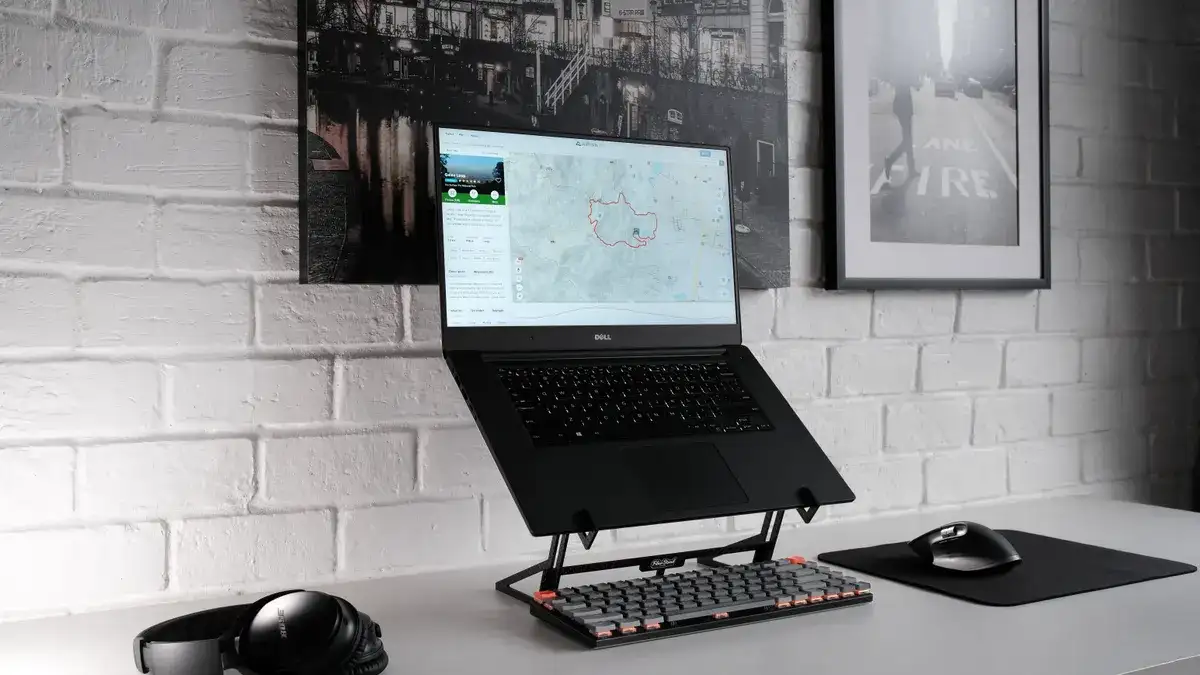
You should count every item that sits on the converter, including the monitor, laptop, keyboard, mouse, speaker, dock, and any mount or stand. If it touches the converter, it counts.
Picture this: you’re setting up for a workday and placing a laptop on the lower level, a monitor on the upper shelf, and a keyboard in front. Then you add a webcam, a headphone stand, and a small lamp because they “don’t weigh much.” Those small items can push a setup past the tray limit faster than you think.
Count these parts one by one:
- Monitor: include the full display and stand unless the stand is removed and the display is mounted elsewhere.
- Laptop: count the laptop itself, even if it feels light next to a monitor.
- Keyboard: full-size keyboards, mechanical boards, and ergonomic boards can be very different in weight.
- Mouse and trackball: small, but still part of the load.
- Docking station or hub: many people forget this because it sits low and looks harmless.
- External speakers: a pair of desktop speakers can add real mass.
- Monitor arm or riser: if it sits on the converter, its weight belongs in the total.
A plain example helps. If your monitor setup is 14 lb, your laptop is 4 lb, your keyboard is 2 lb, and your dock is 1 lb, the working load is 21 lb before you count a mouse, cable slack, or anything else on the surface. That total matters more than the biggest single item.
The common mistake is to count only the heaviest piece. That leads to the “my monitor is under the limit” trap. The converter doesn’t care about the biggest object alone; it reacts to the total load spread across the platform.
Does monitor weight count toward capacity?
Yes, monitor weight counts toward capacity, and it is usually the first item that eats up the limit. A large display can use most of the budget before the laptop and accessories are even added.
Picture this: you’ve got a widescreen monitor on the top shelf and assume the keyboard tray is separate, so the display load “doesn’t matter.” Then the converter feels shaky every time you raise or lower it. The problem is simple: the display load still acts on the frame, the lift, and the desk surface underneath.
There are two ways the monitor matters:
- Direct load on the platform. If the monitor sits on the converter, its stand and base count fully.
- Leverage and balance. A tall or rear-heavy monitor can create more tipping force than a lower, centered item of the same weight.
That second part gets missed often. A converter can be rated for a certain weight and still feel unstable if the load sits too high or too far back. The issue is not just pounds; it is where those pounds sit.
Use this quick check:
- If the monitor sits on the converter, count its full weight.
- If the monitor is on an arm attached to the converter, count the arm too.
- If the monitor is mounted elsewhere and does not touch the converter, it should not be counted there.
- If the converter’s spec splits upper and lower ratings, match the monitor to the correct surface limit.
A higher-resolution or larger-screen monitor is not automatically too heavy, but bigger screens often come with heavier stands. That stand is part of the load unless you remove it. On many setups, the stand base is the hidden weight that pushes the unit near its limit.
The truth is, many capacity problems start with the monitor and end with the keyboard tray. The top shelf is too full, the tray gets crowded, and the whole unit starts to flex.
How much weight do most converter setups need?
Most converter setups need less than the headline number on the package, and a setup with room to spare is easier to use every day. The safer target is a load that stays below the converter’s stated limit.
Picture this: you’re planning a workstation with one monitor, one laptop, a keyboard, and a mouse. That is a common, realistic setup. It does not need a monster-rated frame, but it does need enough headroom that the unit doesn’t sit at the edge of its spec the moment you add a dock or speaker.
A simple way to think about it is by use case:
- Light setup: laptop only, plus keyboard and mouse.
- Mixed setup: laptop plus one monitor and small accessories.
- Heavier setup: larger monitor, laptop, and multiple add-ons.
The working question is not “What is the biggest number I can buy?” It is “What does my actual load weigh, and how much room is left?” A setup that uses most of the capacity can still be technically under the limit and practically annoying.
That is why many people run into trouble after the first week. They add one more device, or swap in a heavier monitor stand, and the converter starts to dip or shake. The system had no spare margin.
A practical rule is to treat the label as a ceiling, not a target, and to check the manufacturer’s guidance or a qualified professional if you are unsure. If your total setup is 24 lb and the converter says 25 lb, that is a poor fit. If the same setup sits well below a 40 lb limit, the unit has breathing room for normal use.
What makes a converter feel unstable even when the number is right?
A converter can feel unstable because of base shape, load height, and the way weight is spread across the surface. Capacity and stability are related, but they are not the same thing.
Picture this: you’re typing on a converter that technically holds the gear, yet the whole top wobbles every time you press a key. The spec sheet did its job; the frame did not. That wobble usually comes from geometry, not just load.
Three things matter most:
- Narrow base: less contact area means less resistance to tipping.
- High center of gravity: the taller the load sits, the more it wants to sway.
- Uneven load placement: one heavy side can twist the platform.
A common example is a monitor placed far back on the top deck, with a laptop, dock, and speakers clustered on one side. The converter may still be “under capacity,” but it is no longer balanced.
This is where stability limits and weight capacity part ways. A model can have a decent limit on paper and still feel wrong if the lift mechanism flexes, the feet are narrow, or the top platform is too deep for the desk. That is why a capacity number alone is not the full story.
The right takeaway is plain: if the converter shakes, rocks, or sags under a normal load, the setup is working against the frame. Lowering the load, centering the weight, or using less gear may help more than chasing a bigger number.
For readers comparing options, the deeper buying guidance on deskconverterguide.com covers the wider decision, but this page is the one to keep open for the math.
How to check your setup before you buy or load it
You should check your setup by totaling every item, matching that total to the correct surface limit, and leaving margin for real use. This takes about 10 minutes and helps avoid a bad purchase.
Picture this: you’re standing in front of a converter listing and trying to guess whether your gear will fit the limit. Don’t guess. Write the numbers down and compare them before the unit lands on your desk.
Use this short procedure:
- List every item you plan to place on the converter: monitor, laptop, keyboard, mouse, dock, speakers, and any arm or stand.
- Find each item’s weight from the product page, box, or manual.
- Add the weights together for the top platform and the keyboard tray separately if the converter uses split ratings.
- Check the max load for the whole unit and for each surface.
- Leave room below the limit so the unit can handle normal movement, cable drag, and typing pressure.
- Recheck after changes if you swap a monitor, add a second screen, or mount a heavier accessory.
A lot of buyers skip step 4 and only look at the biggest number. That is the mistake that causes regret later. A 30 lb total limit is not generous if your setup already comes to 28 lb.
If you want a fast sanity check, compare your total to the heaviest part of the load. If the monitor alone is close to the listed limit, the converter is likely too tight for the rest of your gear. If the keyboard tray has a lower limit than the top platform, that lower number can decide the whole setup.
The best part is that once you do this once, every future purchase gets easier. You stop shopping by guesswork and start shopping by fit.
When is a higher capacity not enough?
A higher capacity is not enough when the converter still wobbles, the tray is too small, or the load is badly balanced. The number can be right and the setup can still be wrong.
Picture this: you buy a model with a bigger limit, then discover the top deck is too cramped for your monitor and notebook, or the tray leaves no room for your wrists. The converter may technically hold the load, but it does not support the way you actually work.
That is why capacity should be treated as one filter, not the only filter. Three other limits matter just as much:
- Surface size: the gear must fit without hanging off the edge.
- Range of motion: the lift must move smoothly with your load in place.
- Stability under use: the unit should stay steady while you type, lean, or shift items around.
A converter with a high rating can still be the wrong fit if the design puts the monitor too high, too far back, or too far to one side. In that case, the load may be within spec, but the setup still feels off.
Drafted with AI; not yet reviewed by a person.
